.png)
Creating a New Volunteer Activity Page (Step-by-Step Guide)
If you’re a charity or Community Partner staff member or a Volunteer Centre administrator, you can create volunteering activities directly from your dashboard. Setting up a volunteer activity is straightforward.
IN THIS ARTICLE:
Creating a new Volunteer Activity
-
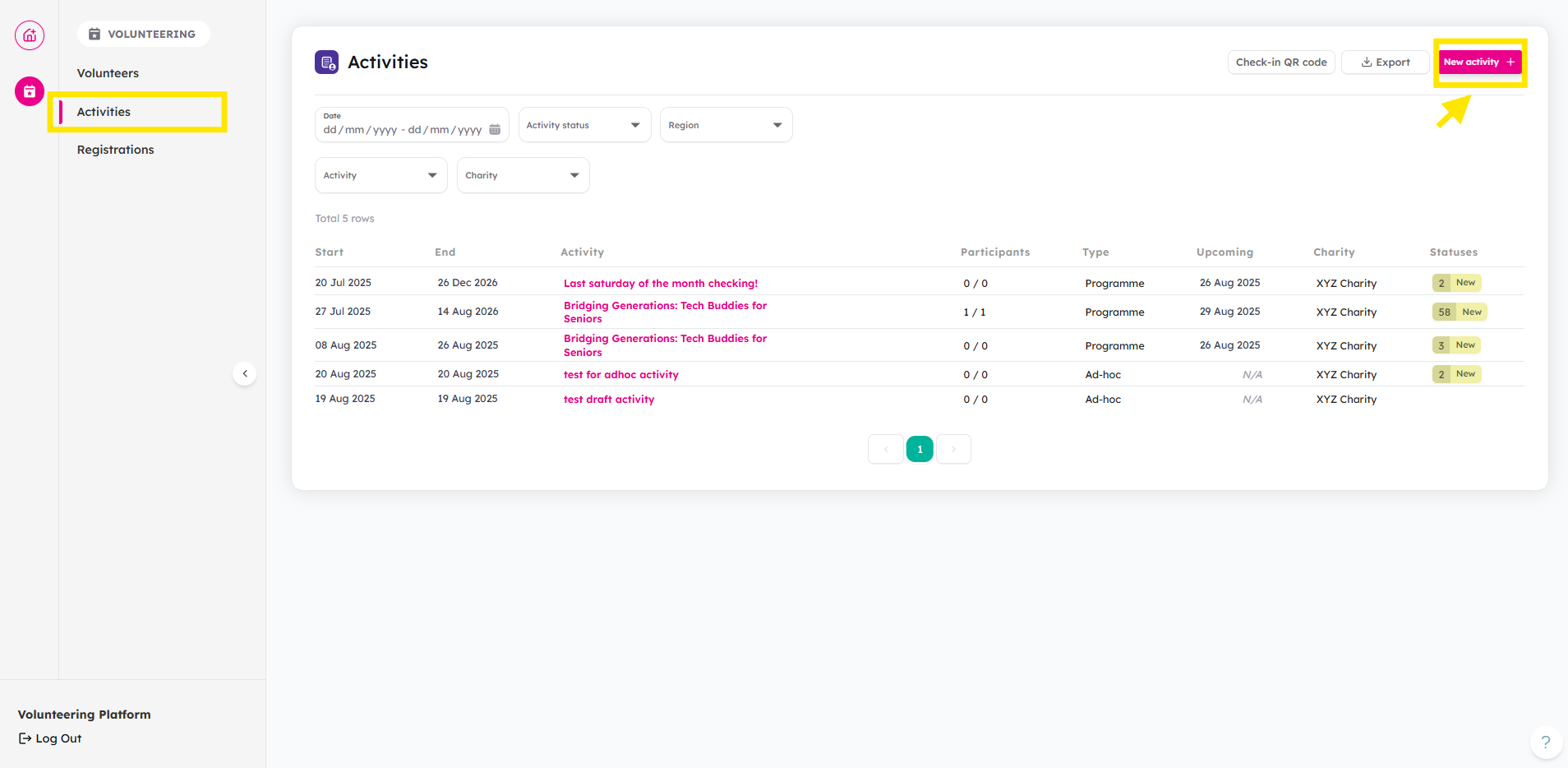
From Dashboard, go to Activities tab and click New Activity
-
Upload Banner Image and set the date and time. Enter Activity Details.
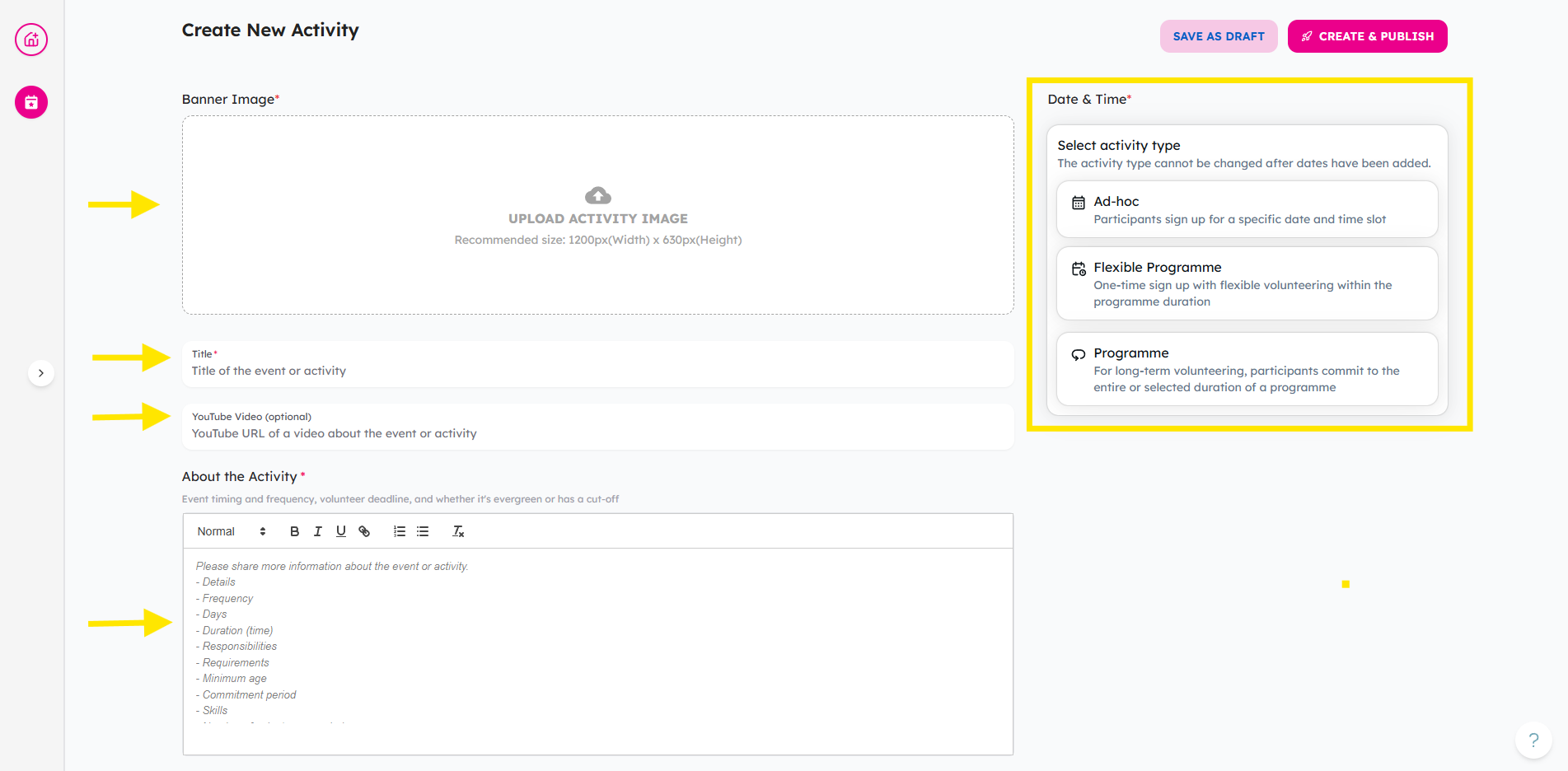
2a. To set date or time, select activity type, then set your activity date and time.
For a comprehensive understanding of selecting activity type, refer to our detailed guide on Creating Ad-Hoc, Flexible, Recurring Programmes. This resource provides in-depth information to help you make an informed choice.
- Enter your Event Postal Code and Event Address. Activity Category will help volunteers discover your activity through filtered searching.
If your activity is for corporate volunteering, consider selecting the "Corporate Friendly" tag, which will show your activity on our Corporate Social Responsibility (CSR) platform in partnership with Singapore Business Federation. To find out more, please refer to this link to learn more about this initiative.

-
Add Role Title and Description. Adding Role tags and Skill tags can help boost your activity's visibility and let volunteers easily find it when filtering by role or skill.
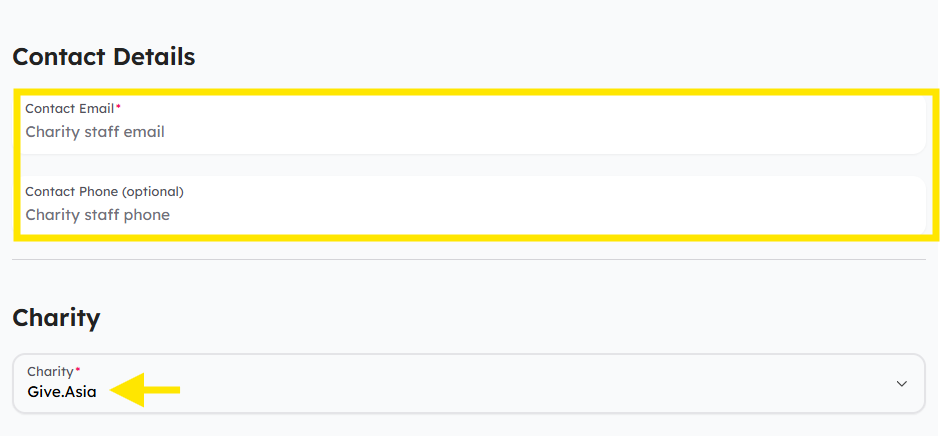
- Enter charity details
-
If you are a charity staff/Community Partner Staff, your charity would be preselected for you by the system.
-
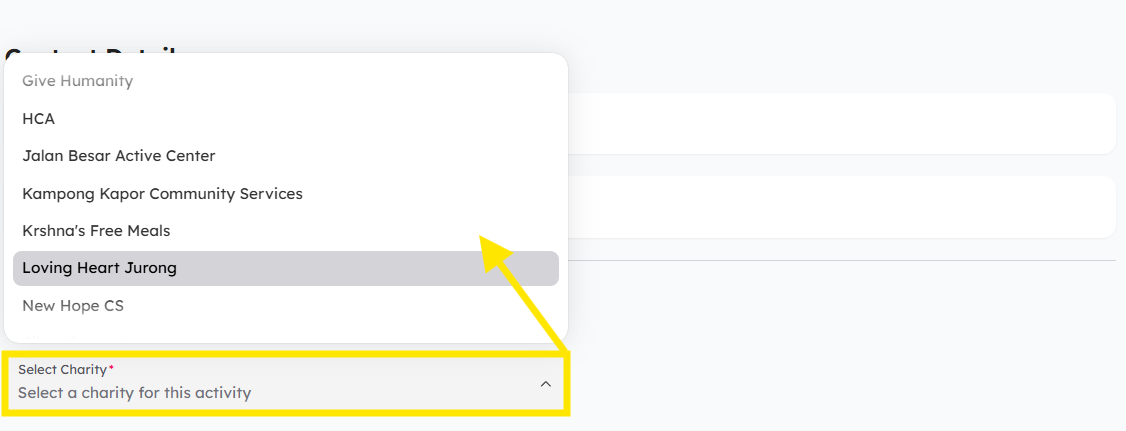
For Volunteer Centre Administrators, when you create activity, you can choose which charity you are creating the activity for.
-
You may also choose to add more questions in the Additional Volunteer's Information to be asked during registration. To find out more, click here
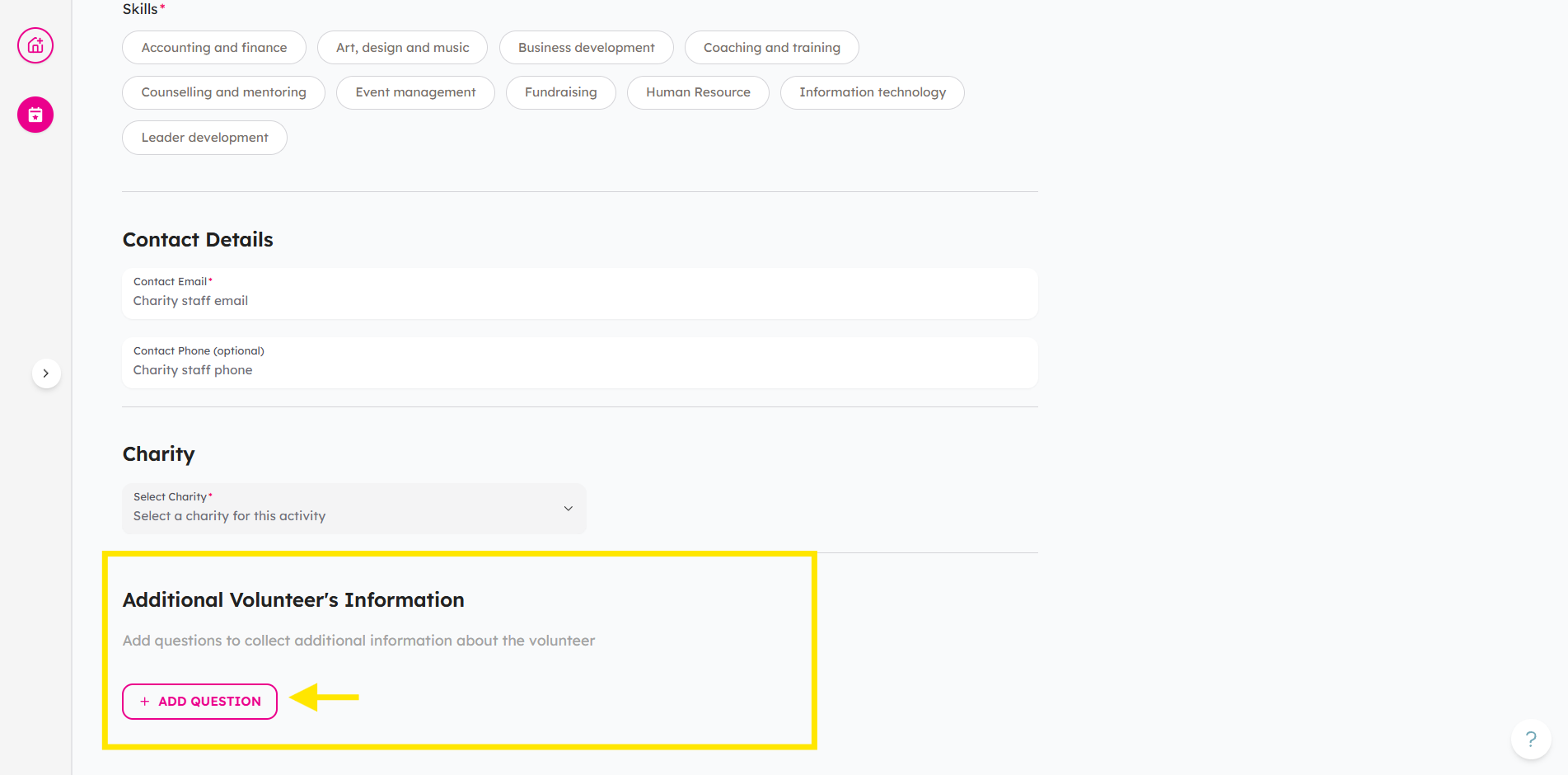
-
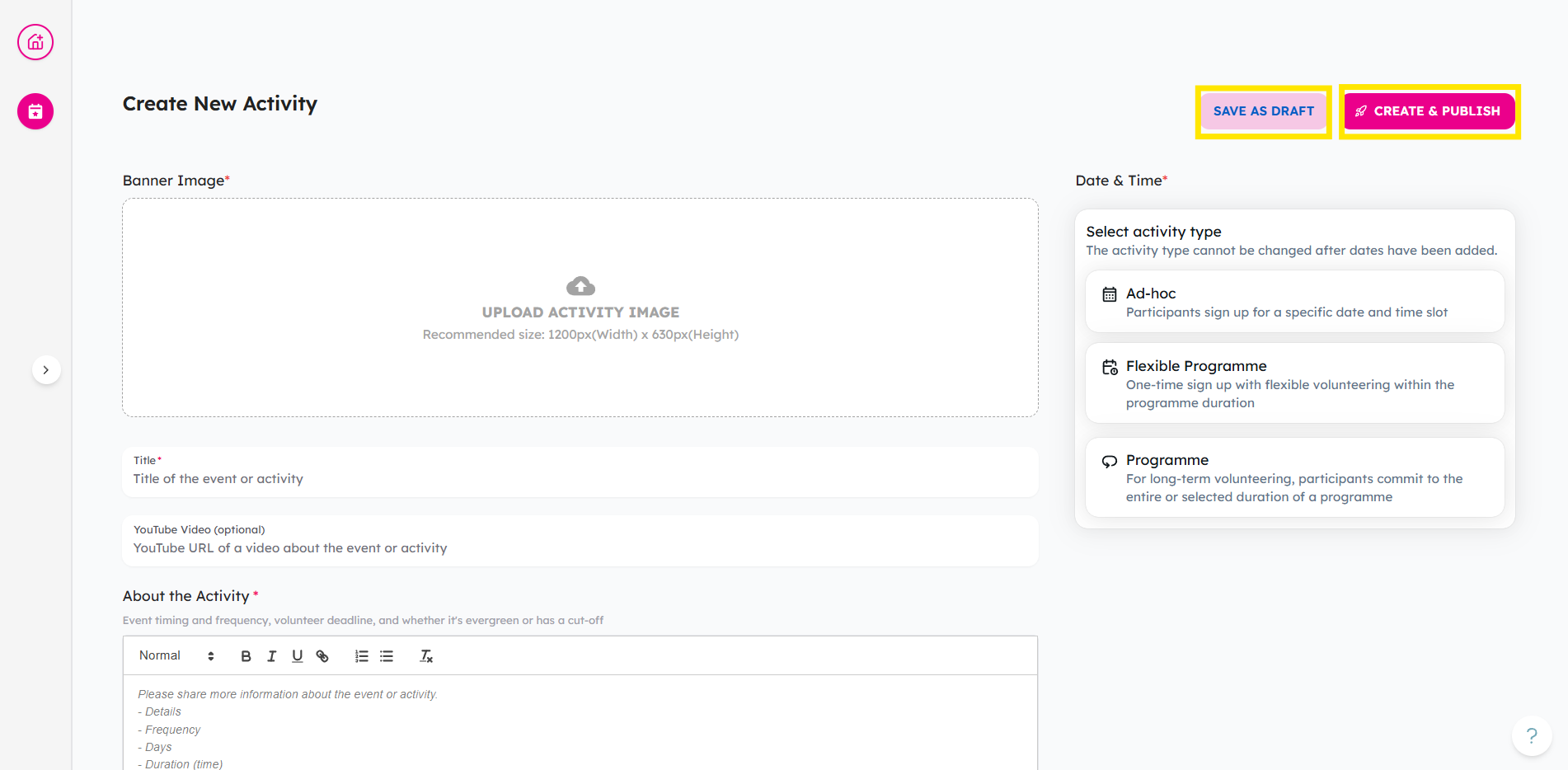
Save as a draft or Publish
Adding Questions to Ask During Registration
You may want to gather additional information from volunteers beyond the standard fields. To do this, you can add custom questions to the registration form.
These questions help you capture details that are specific to your activity.
Available question types:
- Short text – For brief one-line answers
- Long text – For detailed responses
- Single choice – Volunteers pick one option
- Multiple choice – Volunteers can pick more than one option
- Checkbox grid – Useful for structured inputs like schedules or preferences
Steps:
-
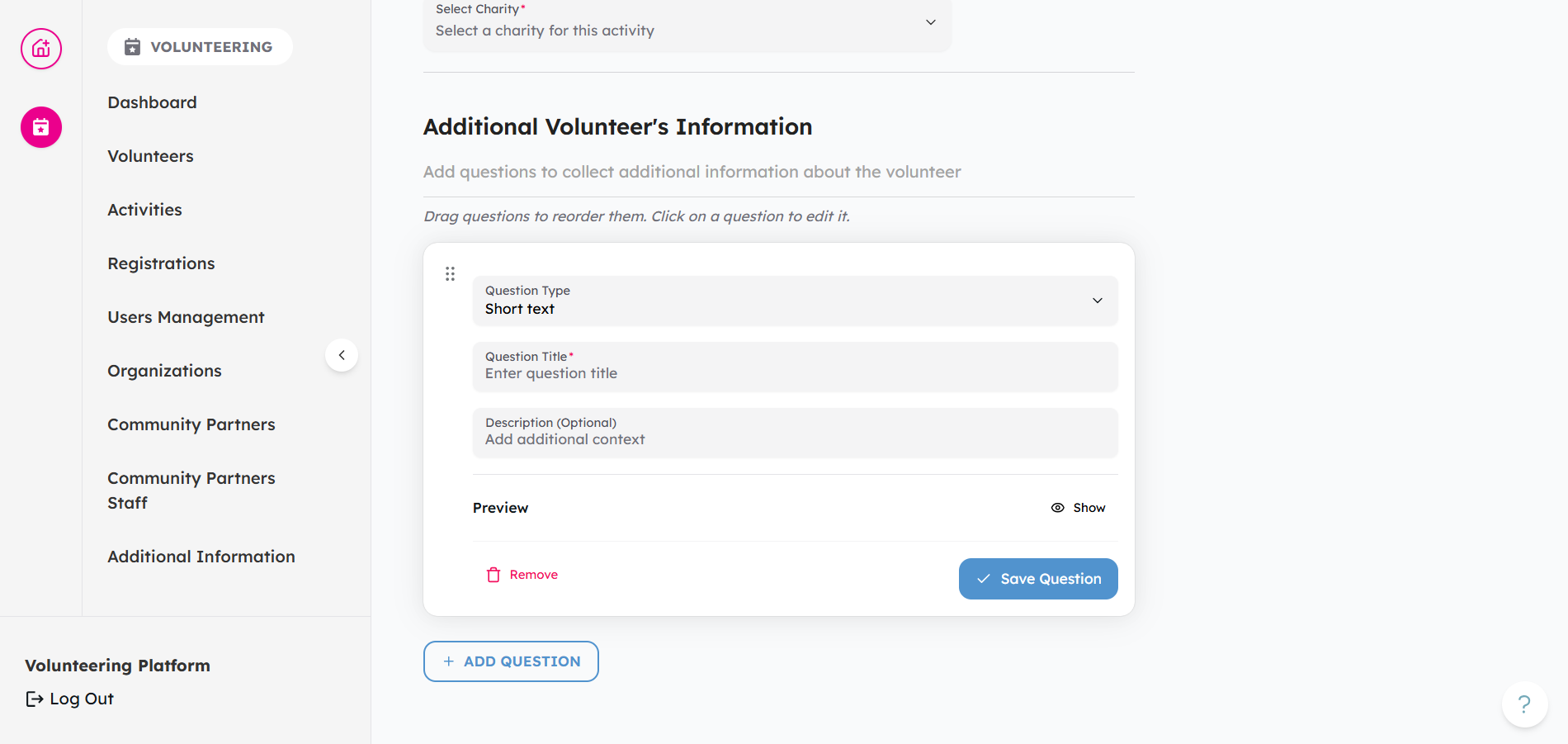
In the Registration Form section, scroll down to Additional Volunteer's Information
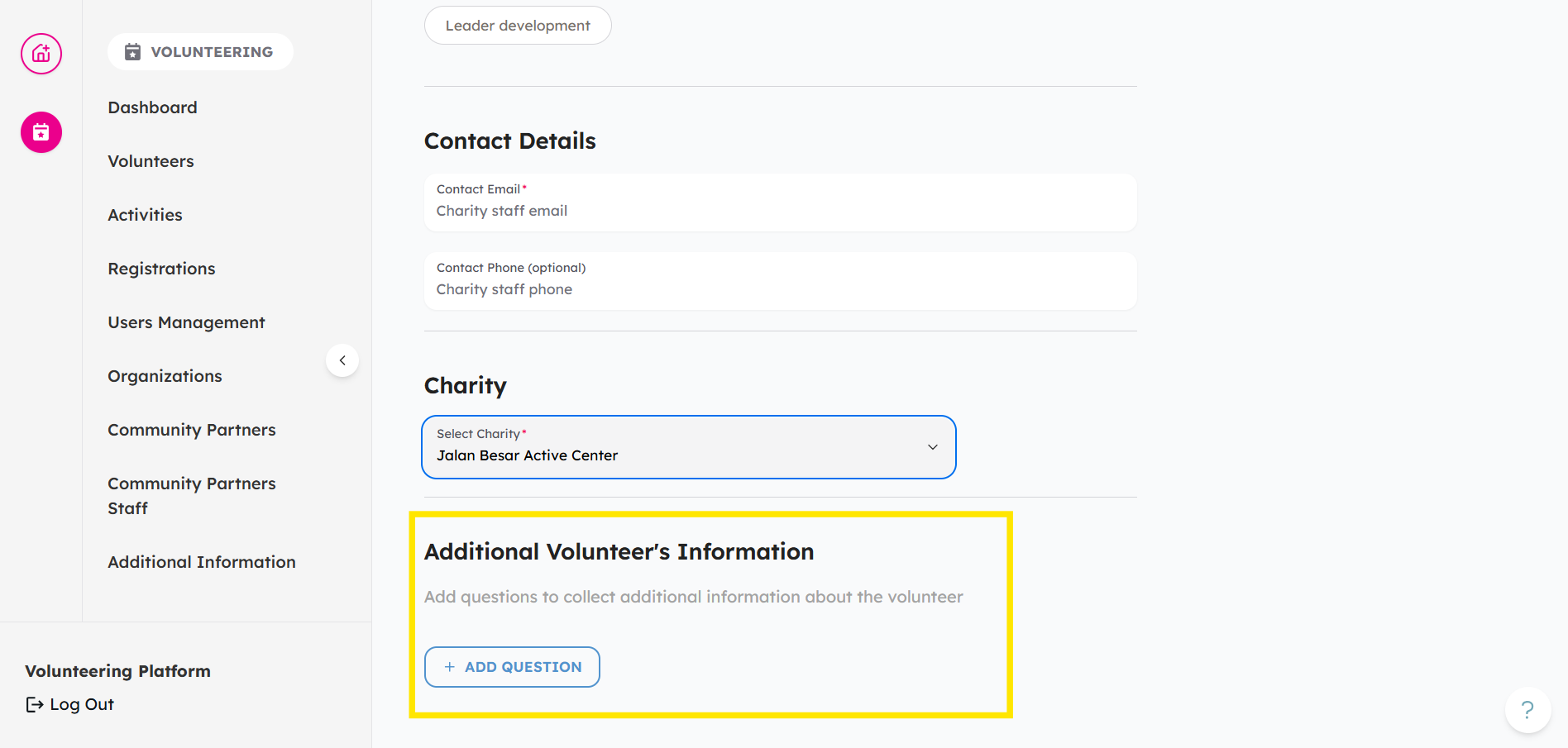
-
Click on + Add Questions, then choose a question type from the dropdown.
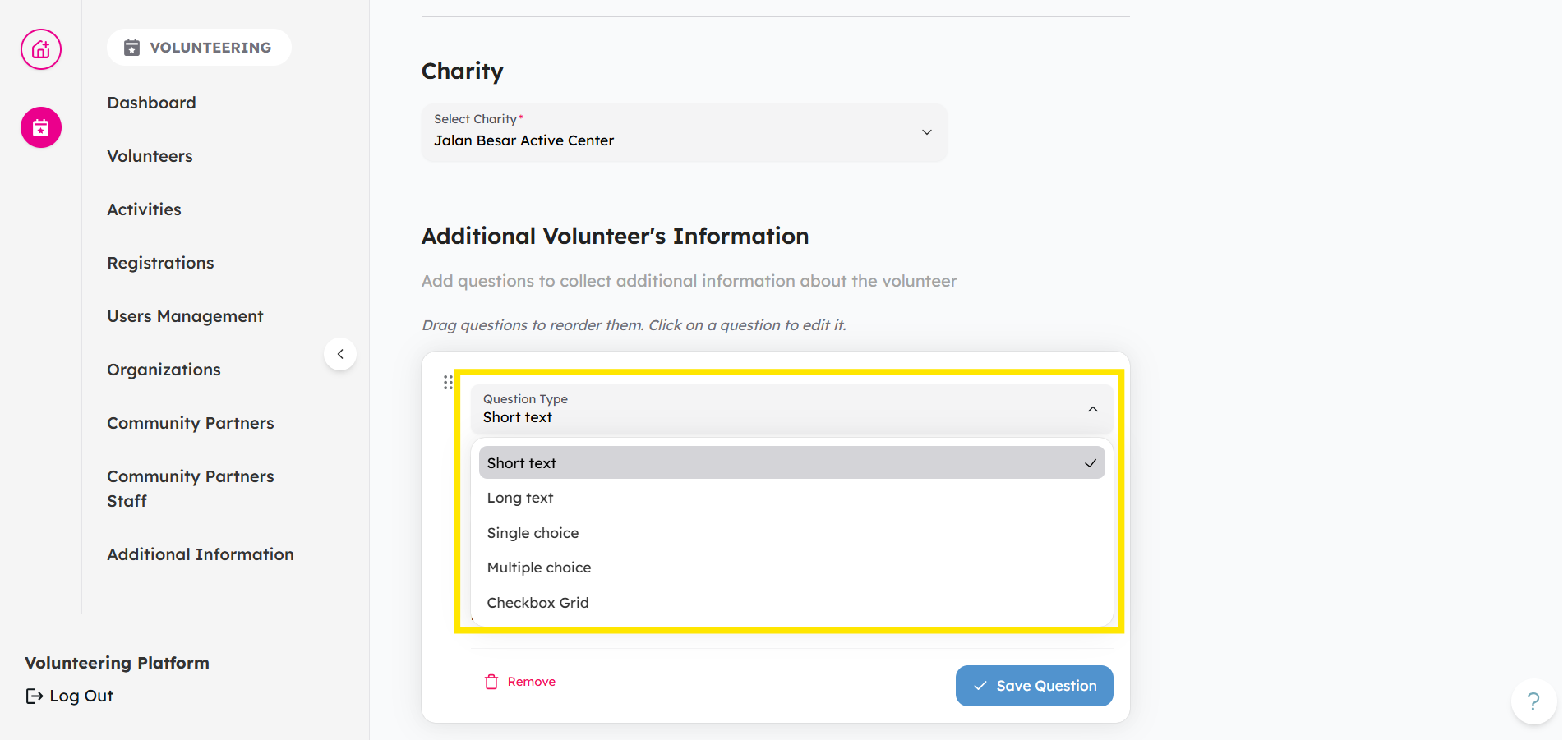
-
Enter your question text and, if needed, the answer options.
-
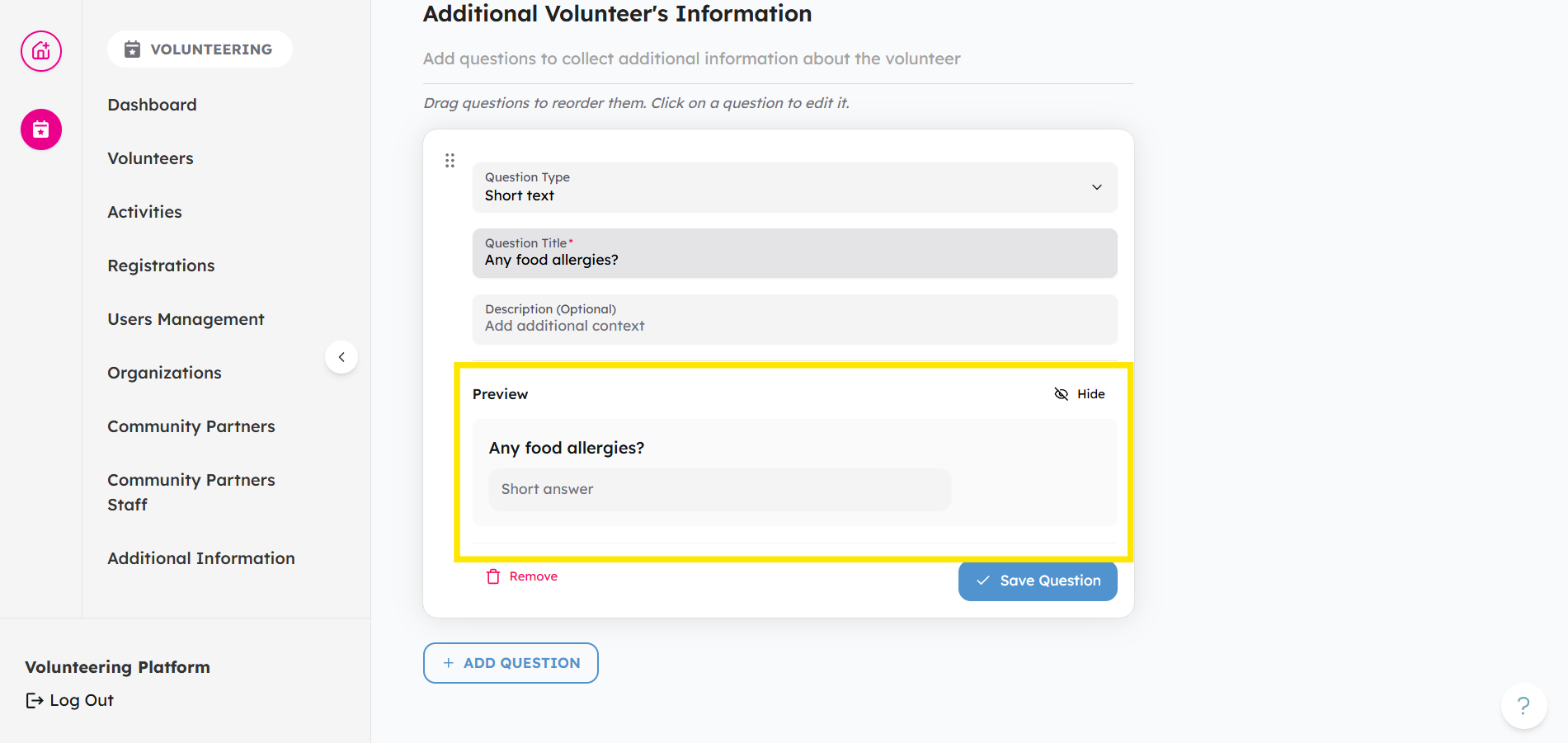
(Optional) Click Show to preview the question
-
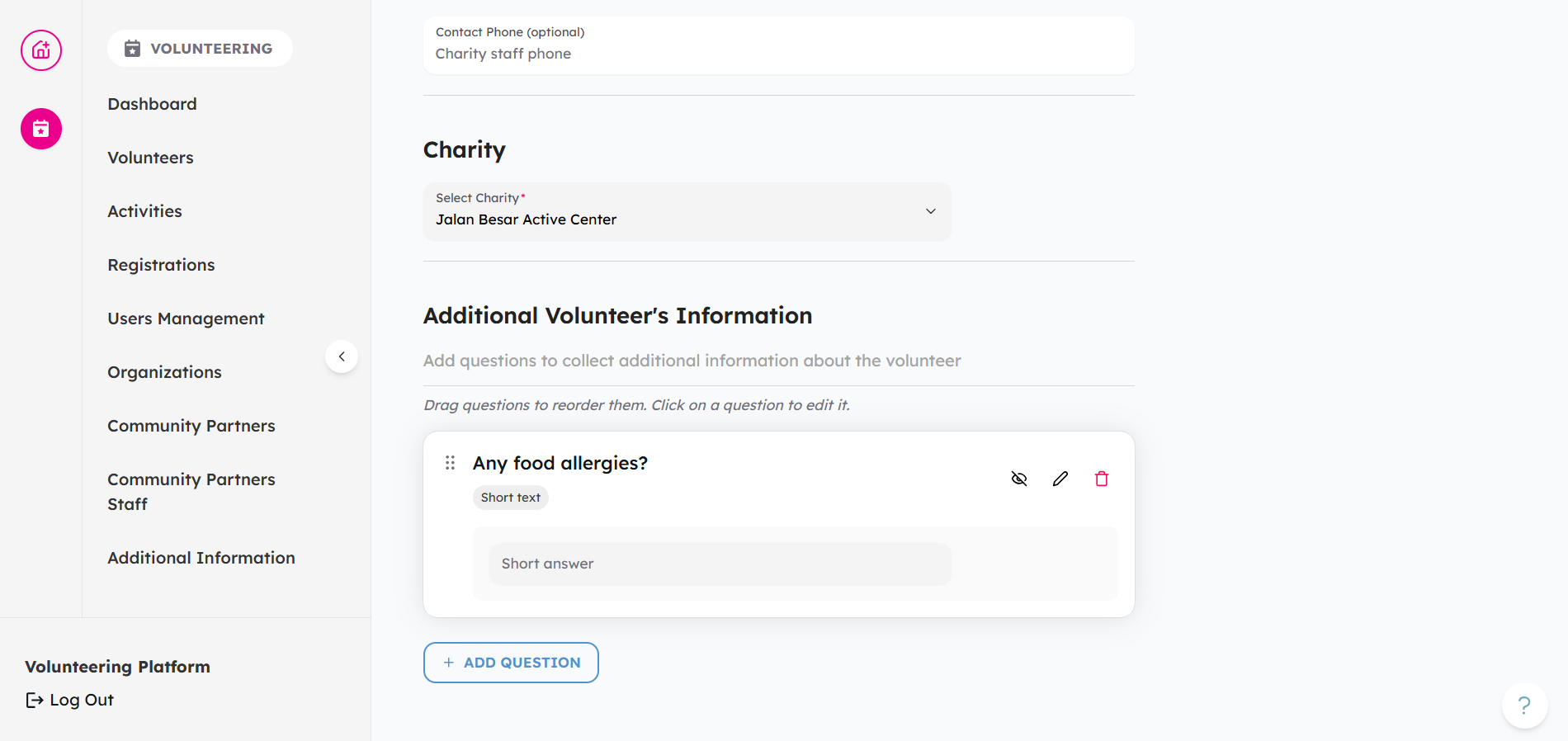
Click on ⩗ Save Question to save your changes. It will look like this once saved:
-
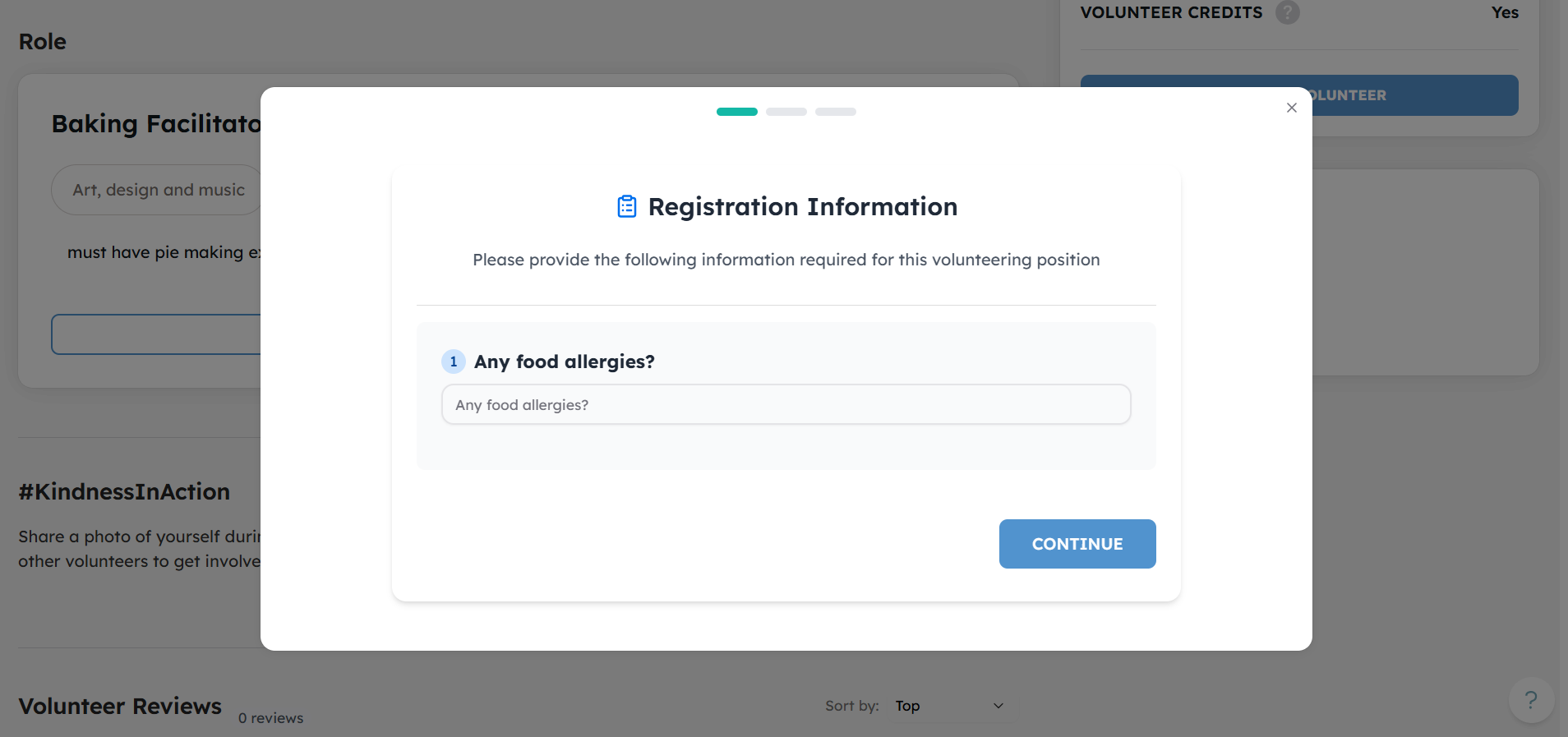
Once saved, volunteers will see the question when they are registering for your activity
-
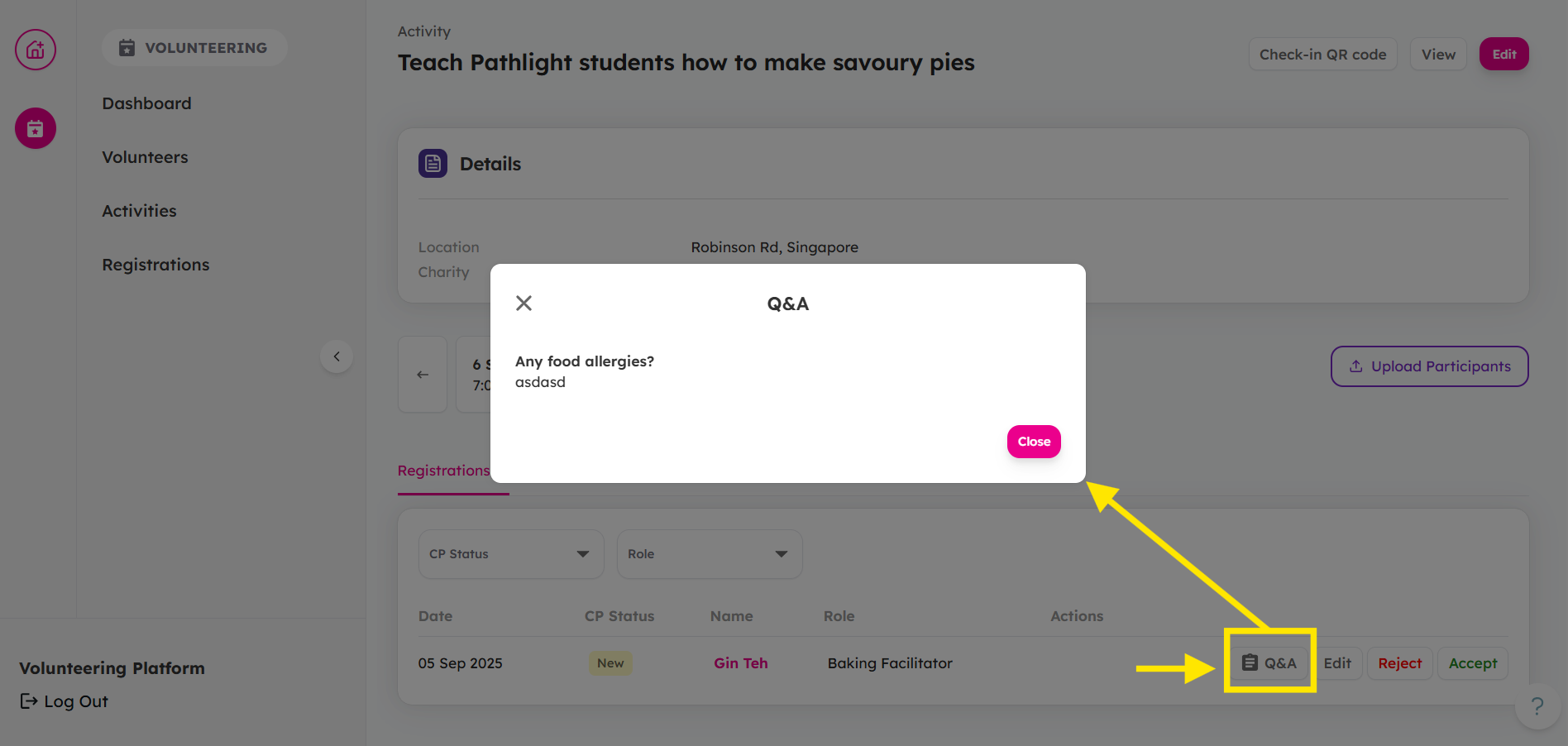
To retrieve the additional information asked, go to the activity, and under the registrations tab within the activity session, select Q&A. For more information, check out this article.
Ready to list your activity? Log in and create your activity here!
If you encounter any issues or have questions, don't hesitate to reach out to us at: [email protected].
Your feedback matters, so feel free to drop us a line anytime!