.png)
How can I reassign a donation to the correct campaign?
If a donor accidentally donated to the wrong campaign under your charity, you can reassign the donation to the correct campaign from your charity dashboard.
This helps make sure the donation appears under the right campaign page and is reflected correctly in your records.
When should I use this?
You can use this when:
- A donor tells you they donated to the wrong campaign
- Your team has confirmed which campaign the donation should go to
- The donation belongs to your charity, but needs to be moved to another campaign under the same charity
Special Note: Donation can't be reassign to a campaign created after the donation date.
If a donation was made on May 1, 2026, it cannot be reassigned to a campaign that was only created and published on May 20, 2026.
How to reassign a donation
- Log in to your charity dashboard.
-
Go to the Reassign Donation page.
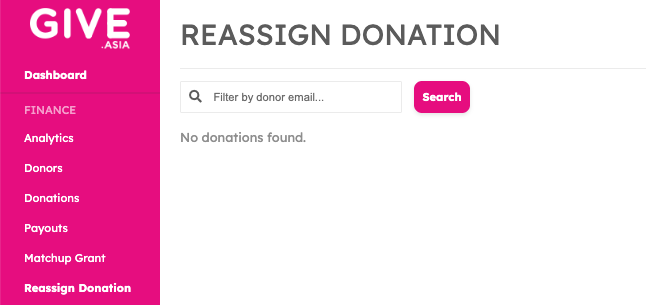
- Search for the donation using the donor’s email address.
- Select the correct donation from the search results.
- Review the donation details carefully, including:
- Donor name and email address
- Donation amount
- Donation date
- Current campaign
- Charity name
- Under To Campaign, enter the new campaign title or campaign ID.
- Click Reassign to confirm.
Once this is done, the donation will be moved from the original campaign to the selected campaign.
Before you confirm
Please double-check that the donation and new campaign are correct before clicking Reassign.
If you are not sure, it is best to confirm with the donor or your internal team first.
Need help?
If you cannot find the donation using the donor’s email address, or if you are unsure which campaign to move it to, please contact us at [email protected].
To help us check faster, please include:
- Donor email address
- Donation amount
- Donation date
- Original campaign link
- New campaign link or campaign title