.png)
What to Do If Your Magic Link Login Shows as Invalid
When you try to sign in using Continue with Email, you may see a message that the link is invalid, or you may be redirected back to the login page. This occurs due to how the Volunteering Platform’s one-time login link (magic link) works together with some organisations’ email security settings. In certain cases, the email security system may automatically scan or open the link before you click it, causing the link to become unusable. This guide explains why this happens and how you can resolve it.
IN THIS ARTICLE
How the magic link works
The Volunteering Platform uses a passwordless login method called a magic link.
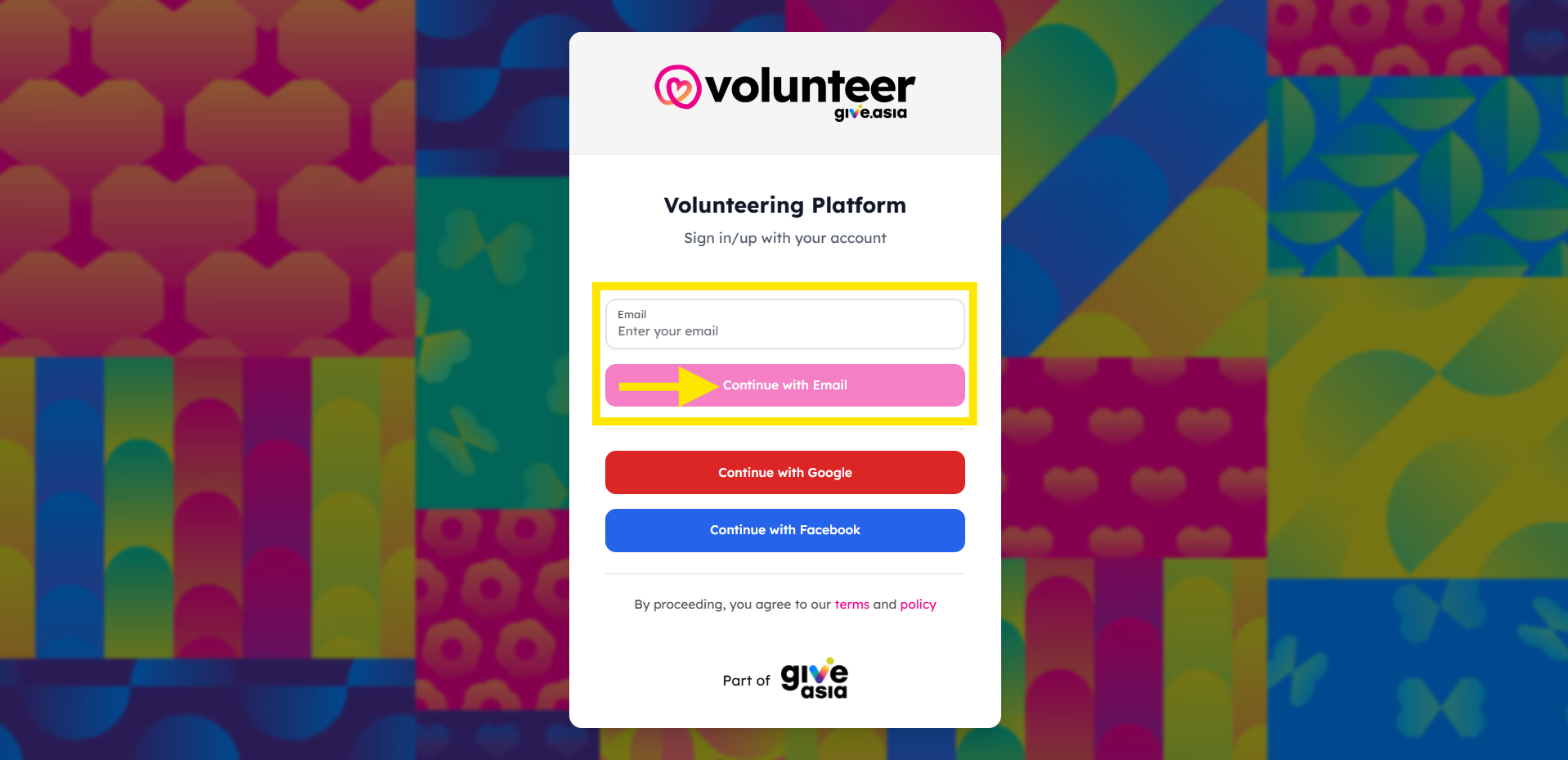
When you select Continue with Email:
- The system generates a one-time login link
- The link is sent to your email address from [email protected]
- You click the Sign in to Volunteering Platform button to sign in
Why the link becomes invalid or causes a login loop
Some organisations use email security systems that automatically scan incoming emails and open links to check for safety.
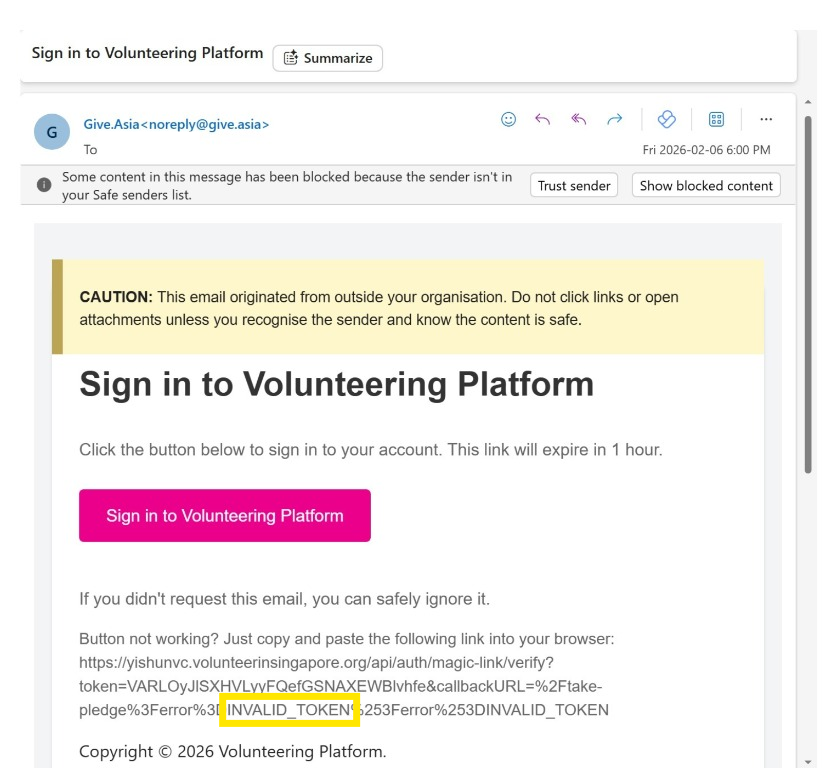
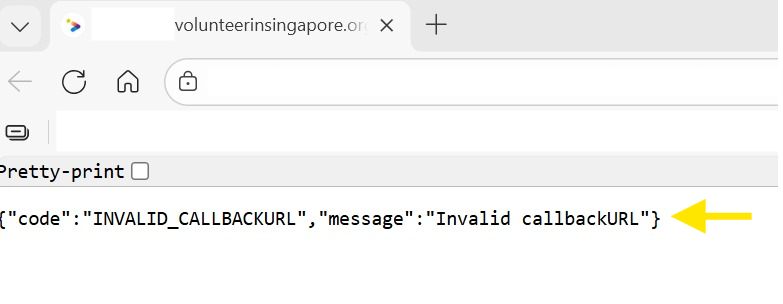
If the system opens the magic link before you do, the platform will recognise the link as already used. When you try to click it afterwards, you may experience one of the following:
-
The link shows INVALID_TOKEN
-
You may be redirected to an error page showing INVALID_CALLBACKURL
- You are brought back to the login page and asked to request a new magic link (login loop)
How to resolve this issue
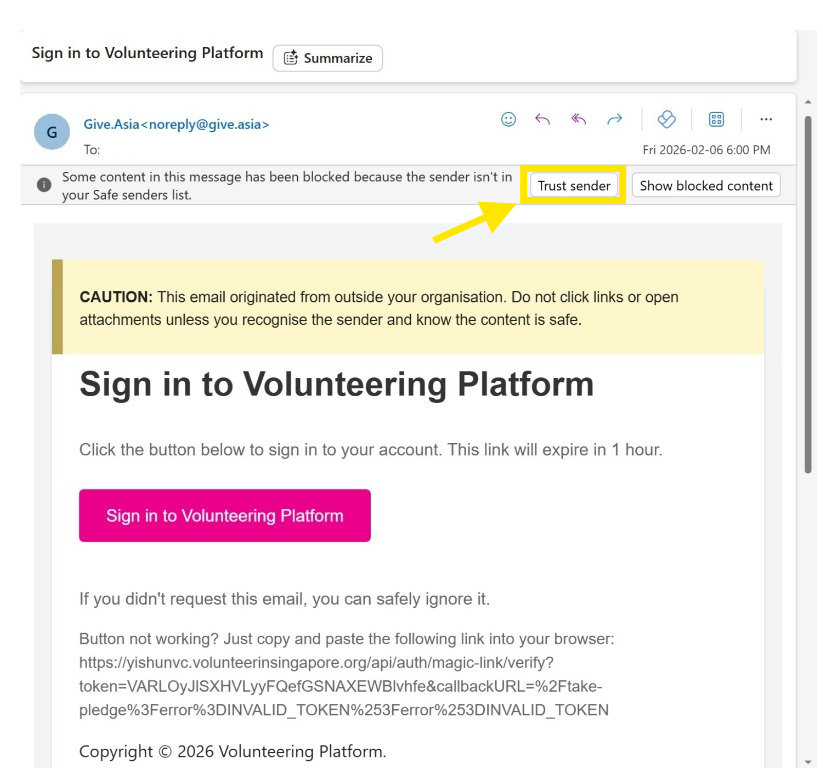
Option 1: Trust the sender directly from the email (quickest way)
Outlook may show a banner indicating that the sender is not trusted.
- Open the email from [email protected]
- Click Trust sender at the top of the email
- Return to the Volunteer Platform login page and try signing in again.
Option 2: Add [email protected] to Safe Senders list.
If you do not see a banner in the email asking you to Trust sender, you can manually add the email address to your Safe Senders list.
Steps in Outlook:
-
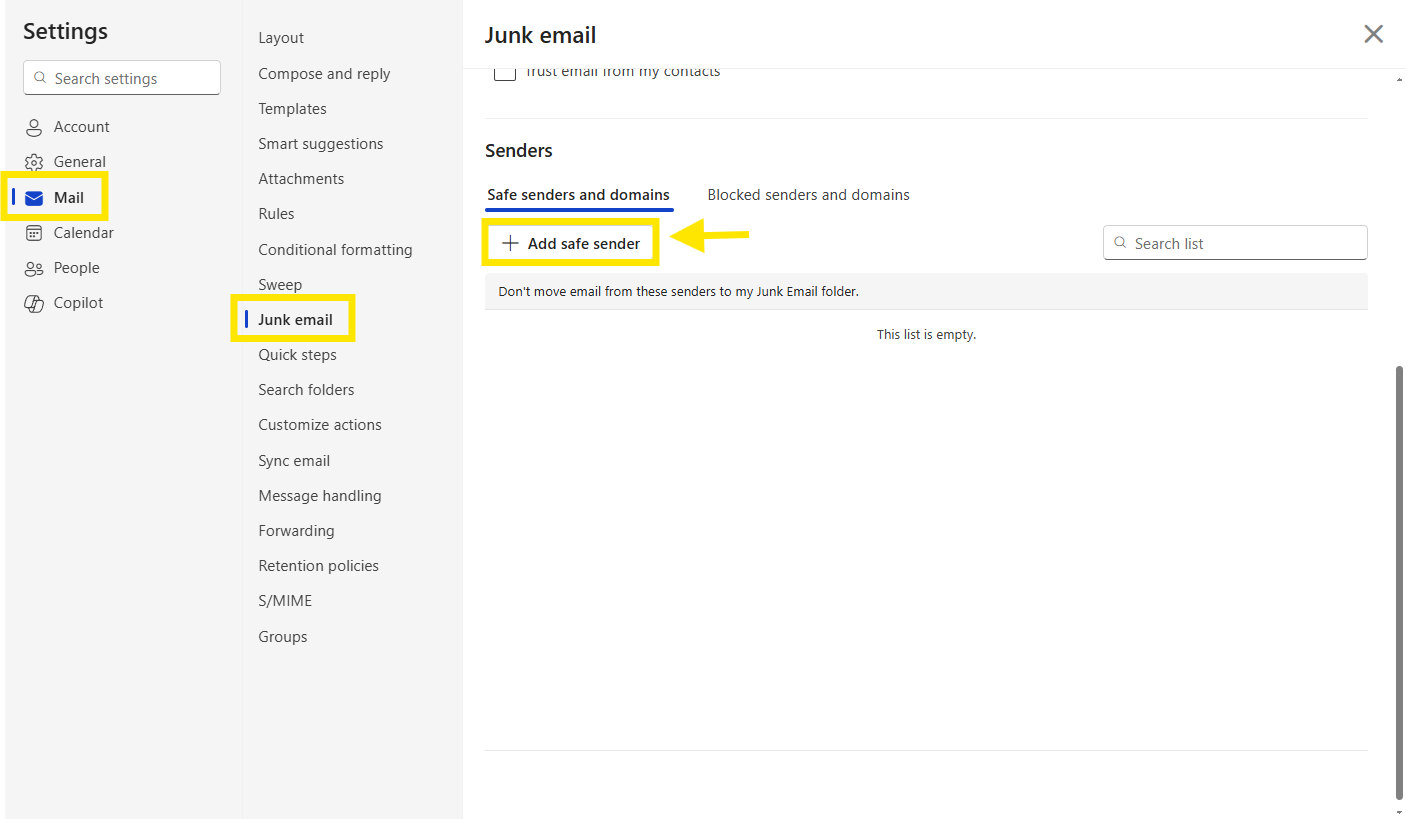
Go to Settings > Mail > Junk email. Under Safe senders and domains, click + Add safe sender
-
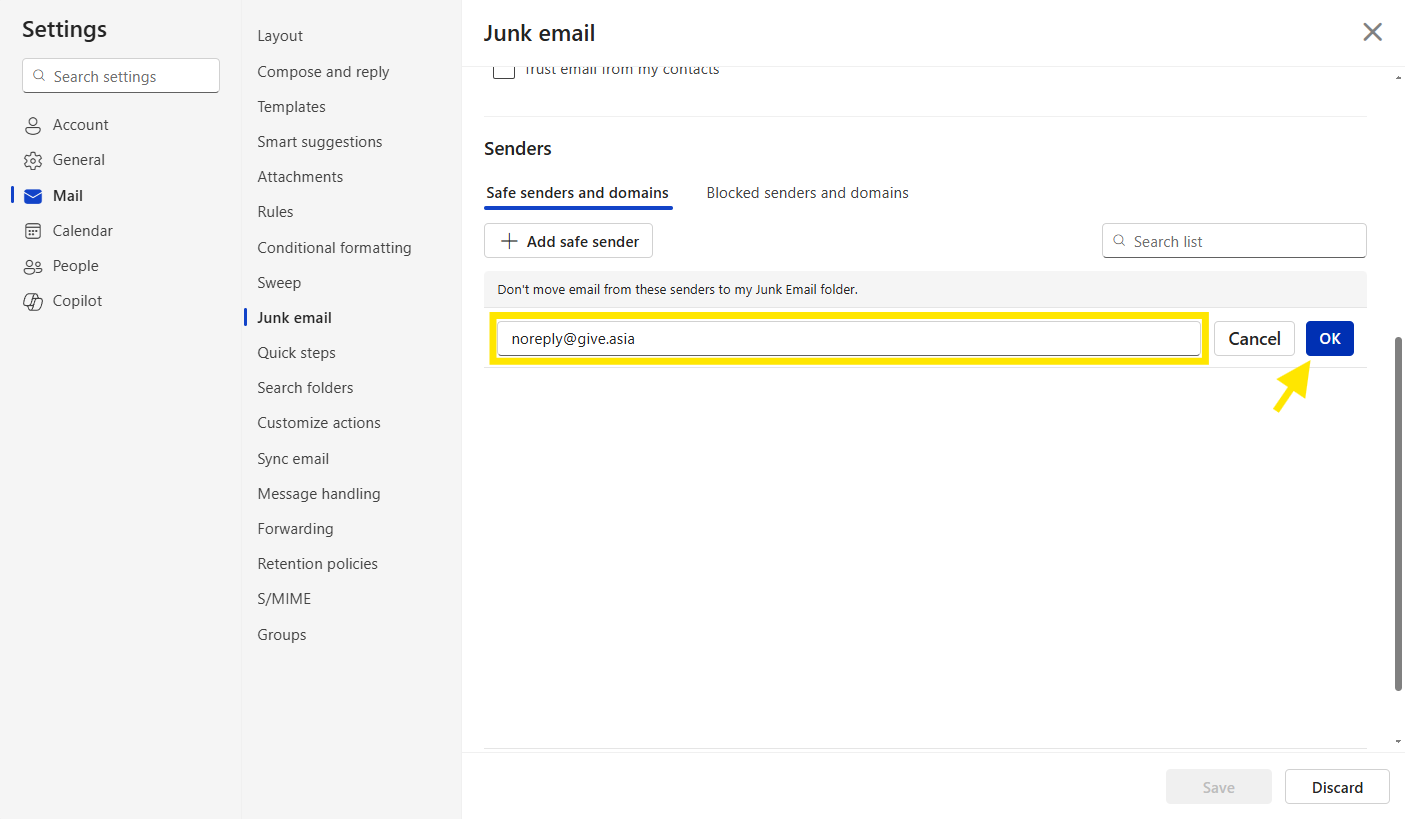
Enter: [email protected]. Click OK.
-
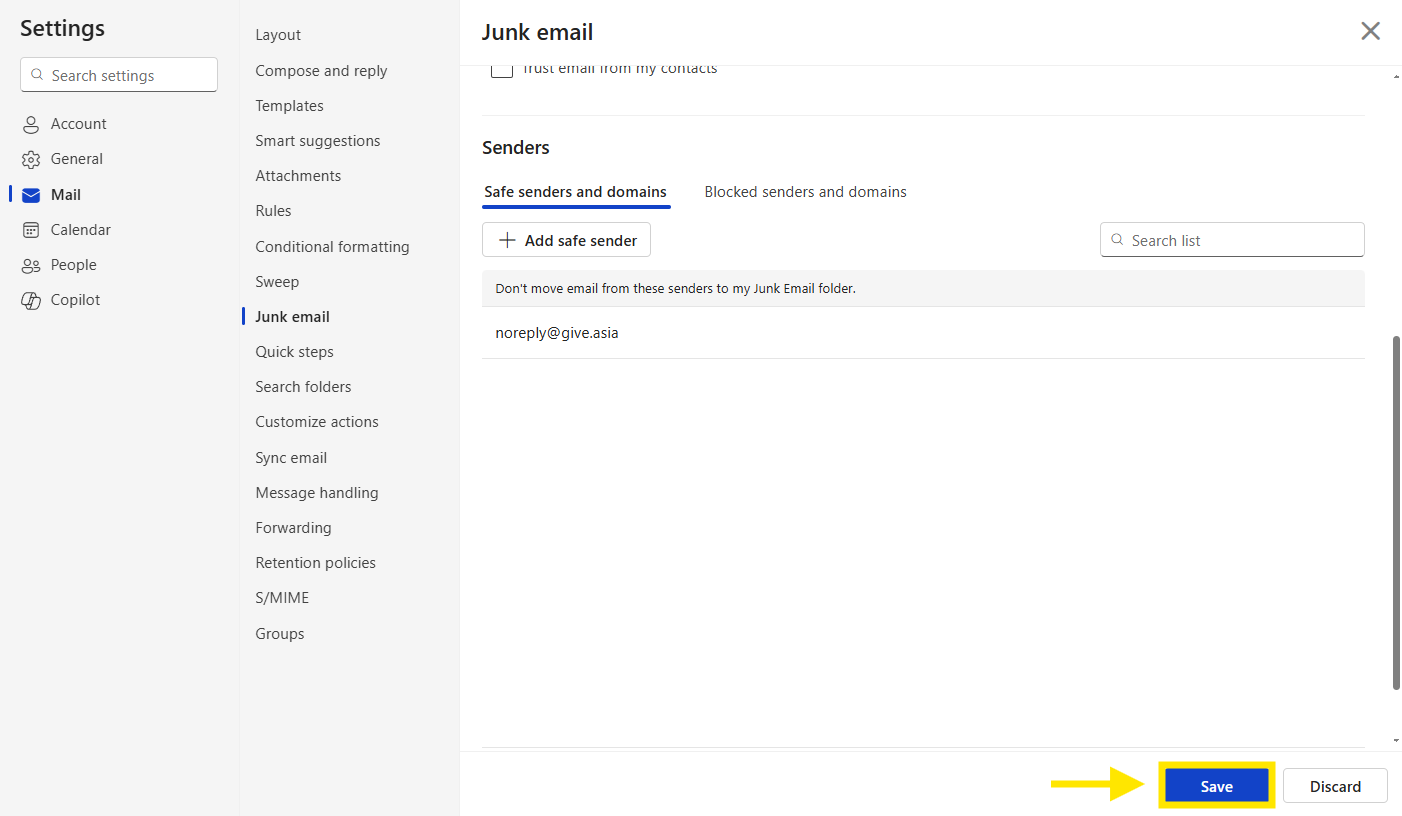
Do not forget to Save.
- Return to the volunteer platform login page and attempt to sign in again.
Ready to log in again?
Return to the Volunteer Platform login page, click Continue with Email, and use the latest magic link sent to your inbox.
If the issue continues, please contact us at [email protected] with a screenshot of the error message and the email banner shown in Outlook.