.png)
What is a Donate Widget and how do I add it to my website?
In this article, we'll explore how effectively managing this feature on your website can lead to a significant boost in donations, ultimately helping you further your cause and make a greater impact.
IN THIS ARTICLE:
Based on data analytics, we've identified several best practices for optimizing the donation flow:
- Asking donors to click a button that redirects them to another website to donate results in approximately a 50% loss in donations.
- Requiring donors to provide excessive details such as salutation, age, postal code, etc., can also lead to a 50% decrease in donations.
- Additionally, requesting donors to print a form, fill it out, and mail it back with a cheque result in another 50% loss in donations.
What is a Donate Widget?
A Donate Widget is a donation pop-up that your charity can add to your own website.
When a visitor clicks the Donate button on your website, a secure Give.Asia donation window will open. Donors can then complete their donation without needing to leave your website.
This creates a smoother giving experience and helps make donating easier for your supporters.
With the Donate Widget, your charity can:
- Accept one-time and recurring donations
- Show preset donation amounts
- Keep donors on your website during the donation process
- Manage donations through your Give.Asia charity dashboard
- Make the donation journey feel more seamless and trustworthy
You can customise the Donate button so it fits better with your website’s design.
Example: Let's take MIJ Hub as an example. On their website at https://www.mijhub.com/, you'll notice the Donate button located in the right sidebar.


How to set up a Donate Widget?
Step 1: Log in to your charity account on Give.Asia and select "Manage Charity" from the main menu

Step 2: In the charity management page, choose the "Widget" section from the left-hand menu

Step 3: Follow the instructions and tips provided to create a widget that suits your preferences. Copy the widget code provided in the dashboard and add it to your charity website. You don't need an IT person to do this because it's so easy!

Installing Donate Widget on Wordpress
- 1
- Login to your WordPress site
- 2
-
On the sidebar, click on Plugins

- 3
- Click on Add New
- 4
-
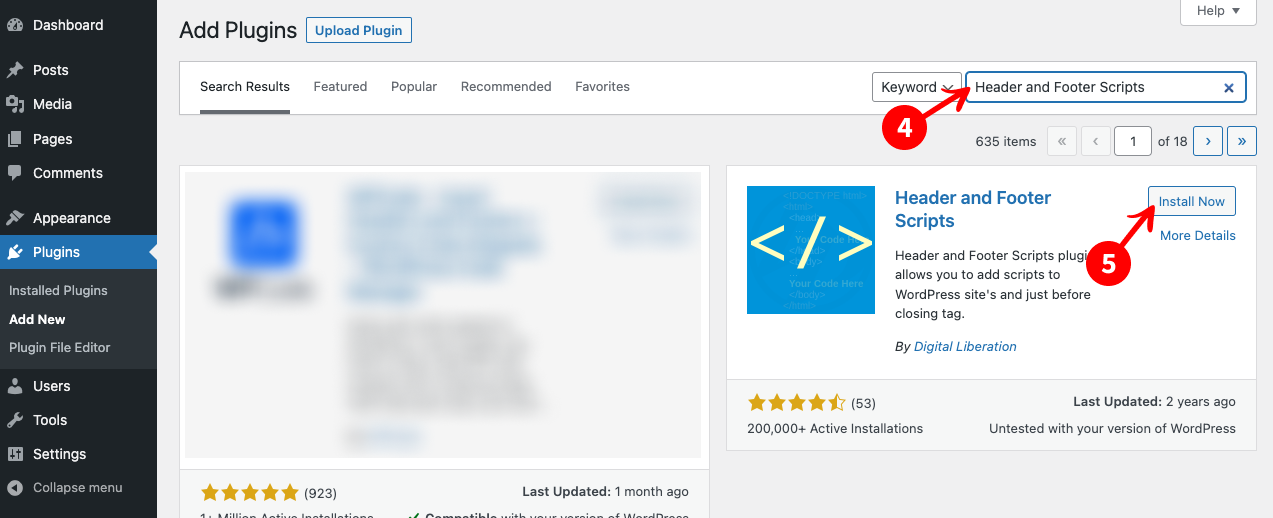
Search for Header and Footer Scripts
- 5
- Click on Install Now
- 6
-
Once installation is completed, click on Activate

- 7
-
On the sidebar, click on Settings, then click on Header and Footer Scripts

- 8
- Paste the Donate Widget code from GIVE.asia Charity Dashboard into the text field under Scripts in header
- 9
- Click on Save settings, and you're done!


Installing Donate Widget on Wix
- Go to Settings in your site's dashboard.
-
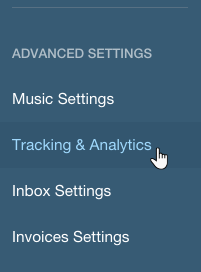
Click the Tracking & Analytics tab under Advanced Settings.
- Click + New Tool and select a <Custom>.
- Paste the Donate Widget code you copied from www.give.asia website and you're done!
Step 4: After adding it to your website, click the Donate button to make sure the secure donation window opens correctly. We recommend testing the donation flow before sharing the page with donors.

By following the simple steps outlined above, you can create a widget that complements your website's design and encourages visitors to support your cause. Don't hesitate to leverage this powerful tool to maximize your charity's impact and reach your fundraising goals.
Interested in Setting Up a Charity Event or Exploring More Features?
Once your widget is live, you might be considering the next step—such as launching a charity event, adding ticketing, or running a full campaign.
If you need help setting up the Donate Widget, please reach out to your Support Sidekick or contact us at [email protected].